
Kubernetes Reference Architecture
- Table of Contents
- Introduction
- Architecture Overview and Caveats
- Kubernetes Resources
- Helm Repository
- Configuration
- Installation
- Operation
- Helm Configuration Fields
Introduction
Purpose of This Guide
What this guide is:
- A reference implementation for how to use GreenArrow in a Kubernetes environment.
What this guide is not:
- This guide does not represent the only way to run GreenArrow in a Kubernetes environment.
- This guide is not an introduction to Kubernetes and/or Helm, nor is it a guide to how to use Kubernetes and/or Helm.
What is Supported
We provide a Helm chart for installing GreenArrow Email in Kubernetes.
To configure GreenArrow using Helm, you’ll create a values.yaml file. The available keys can be seen in the
greenarrow/values.yaml file.
If you’re not familiar with YAML, this tutorial is a good introduction to the file format.
Here’s what’s currently supported by our Helm chart:
- Configuration validation
- Message injection via HTTP Submission API or SMTP
- Outbound message delivery via an external HAProxy or GreenArrow Proxy server
- Scaling in and out
- Messages will be distributed to other MTA pods when scaling in.
- If messages cannot be distributed during a scale in, they can optionally be written to a PersistentVolumeClaim (
drainFallbackVolumeClaim). - If message drain fails entirely, a snapshot of the pod’s persistent path will be saved to an optional PersistentVolumeClaim (
drainFallbackVolumeClaim).
- Inbound HTTP/SMTP handling for click/open/bounce/fbl events
- Automatic HTTPS TLS termination using Let’s Encrypt for certificate registration
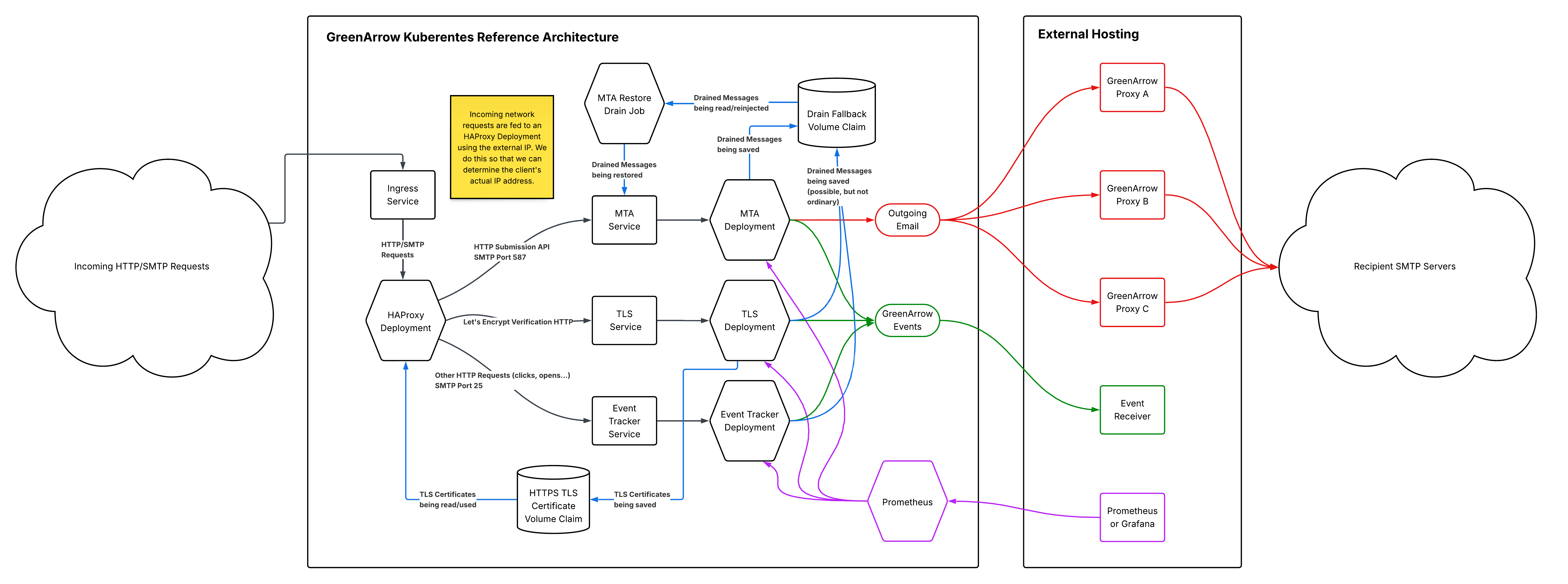
Graphical Summary of this Architecture
Architecture Overview and Caveats
This architecture assumes you have one or more GreenArrow Proxy instances running external to it. It is possible to run GreenArrow Proxy within Kubernetes, but this guide does not provide information on how to accomplish that (yet!).
GreenArrow Statistics and Telemetry
Statistics on cluster activity are available primarily through two mechanisms:
- GreenArrow’s Event Delivery
- GreenArrow’s Prometheus or StatsD Integration
These two mechanisms provide different information, and it’s likely you want to consume from both sources.
UI / API / Log Files
GreenArrow’s per-instance UI, API, and log files provide an incomplete view into activity, as they only show activity that has occurred on that instance. For example, an Event Tracker instance may show some of the click/open data for the cluster (but not all), but reveal nothing about send statistics. For this reason, we recommend against attempting to make use of per-instance UI and/or API features. Instead, you should rely on Event Delivery and Prometheus/StatsD. It’s best to think of the individual GreenArrow instances as headless.
Data Persistence
Individual GreenArrow instances are considered disposable. When one receives a SIGTERM signal, the following occurs:
- The GreenArrow MTA and HTTP server are stopped.
- Wait for all events in-queue to deliver.
- Use Instance Drain to distribute in-queue messages to other MTA instances.
- Finish shutdown.
Any remaining data on that instance is deleted when it completes shutdown.
GreenArrow Feature Caveats
Backoff mode functions per-instance (not per-cluster). If a single instance enters backoff mode, it will reduce that instance’s contribution towards the cluster’s calculated speed limit for that throttle.
Repeat bounce tracking does not function in this mode.
Each GreenArrow instance is responsible for delivering its events, so event delivery concurrency is used per-instance, not cluster-wide.
No mechanism is provided for retrieving incoming email from these GreenArrow instances, although email forwarders are available as a work-around.
Security Context
The GreenArrow pods do not require their containers to run as root. All GreenArrow pods run as uid/gid 1000/1000.
See the mountRootReadOnly configuration to update the security context to run the container read-only.
Kubernetes Resources
This GreenArrow Kubernetes cluster implementation consists of the following resources:
| Event Tracker Deployment |
This deployment maintains a number of GreenArrow pods dedicated to processing inbound HTTP/SMTP events such as clicks, opens, and asynchronous bounces. |
| MTA Deployment |
This deployment maintains a number of GreenArrow pods dedicated to accepting messages via SMTP or the HTTP Submission API and performing outbound delivery. Messages that can not be delivered on the first attempt are queued and retried later. |
| TLS Deployment |
This deployment maintains a single GreenArrow pod dedicated to registering and renewing Let’s Encrypt TLS certificates. |
| MTA Restore Drain Job |
This job runs once per minute. It is responsible for checking the |
| Ingress Service |
This service is responsible for accepting incoming HTTP/HTTPS/SMTP connections and serving it to this node’s HAProxy pods. |
| HAProxy Deployment |
This deployment runs HAProxy to receive inbound connections from the Ingress Service. It is responsible for performing the following:
|
| MTA Service |
This service acts as a load balancer to the MTA Deployment pods. |
| Event Tracker Service |
This service acts as a load balancer to the Event Tracker Deployment pods. |
| TLS Service |
This service acts as a load balancer to the TLS Deployment pod. This exists to provide a name for the HAProxy Deployment to use in connecting to the pod. |
| Prometheus Service |
This service provides separate access to your Prometheus pod. See |
| Prometheus Deployment |
This deployment maintains a single Prometheus pod dedicated to scraping the various GreenArrow pods in this cluster.
See |
Helm Repository
We recommend cloning the GreenArrow helm-charts repository. That repository provides some helper utilities that can make managing your GreenArrow Cluster in Kubernetes easier.
git clone https://github.com/drhinternet/helm-charts.git greenarrow-helm-charts
cd greenarrow-helm-charts
Directory Structure
| Path | Description |
|---|---|
bin/ |
Several scripts, described below, to make interacting with GreenArrow on Kubernetes with Helm simpler. |
config.all/ |
Directory for your GreenArrow configuration files that will be merged into values.yaml as configAll when you run bin/config-rollup. |
config.mta/ |
Directory for your GreenArrow configuration files (specific to the MTA deployment) that will be merged into values.yaml as configMta when you run bin/config-rollup. |
config.event-tracker/ |
Directory for your GreenArrow configuration files (specific to the Event Tracker deployment) that will be merged into values.yaml as configEventTracker when you run bin/config-rollup. |
config.tls/ |
Directory for your GreenArrow configuration files (specific to the TLS deployment) that will be merged into values.yaml as configTls when you run bin/config-rollup. |
greenarrow/ |
The definition of GreenArrow’s Helm chart. |
Pulling Updates
When GreenArrow updates the Helm chart, you’ll need to pull those changes into your copy of the Git repository and merge with any local changes you have made.
This command will attempt to preserve any local changes you’ve made (such as your values.yaml or config/ files)
and pull the latest Helm changes from GreenArrow’s Git repository.
git pull --rebase --autostash origin master
Configuration
The following sections define configuration you should set prior to installing the GreenArrow Helm application.
Cluster Configuration
To configure your GreenArrow Kubernetes cluster, create a values.yaml file at the root of the Git repository. This is a separate
file from greenarrow/values.yaml. The former (the values.yaml in the root directory) is the copy you will edit. The
latter (greenarrow/values.yaml) is the file maintained and updated by GreenArrow and lists all of the possible keys
you might include in your values.yaml. You typically should not edit greenarrow/values.yaml, as that will lead to
merge conflicts when you pull changes to the GreenArrow Helm chart.
See the Helm Configuration Fields at the bottom of this page or
greenarrow/values.yaml for the full list
of available configuration keys.
GreenArrow Configuration
There are a few settings we recommend using when deploying GreenArrow in Kubernetes.
-
Define at least one VirtualMTA (ip_address, relay_server, or routing_rule) and set it to default_virtual_mta.
- Use greenarrow_proxy or proxy_server to configure GreenArrow to use your GreenArrow Proxy or HAProxy server.
- When using GreenArrow Proxy, in most cases you’ll want to specify greenarrow_proxy_throttle_reconciliation_mode to
average.
- When using GreenArrow Proxy, in most cases you’ll want to specify greenarrow_proxy_throttle_reconciliation_mode to
- Configure one or more event_delivery_destination to receive GreenArrow events.
Additionally, when running with the GreenArrow Helm chart, the following greenarrow.conf defaults are automatically applied:
general {
  define_virtual_mtas_in_config_file yes
  define_url_domains_in_config_file yes
  define_mail_classes_in_config_file yes
  define_incoming_email_domains_in_config_file yes
  define_throttle_programs_in_config_file yes
  define_engine_users_in_config_file yes
  define_database_connections_in_config_file yes
  define_dkim_keys_in_config_file yes

  engine_time_zone UTC

  default_event_tracking_metadata_storage stateless
  greenarrow_proxy_use_hostname_as_client_name yes
}
HTTPS TLS Configuration
GreenArrow supports integration with Let’s Encrypt to register and renew TLS certificates.
To accomplish this, the following must be provided:
-
Create a ReadWriteMany PersistentVolumeClaim for GreenArrow to use for certificates. This is done outside of GreenArrow’s Helm configuration.
-
Set
httpsTlsCertVolumeClaimto the name of that volume claim. -
Agree to the Let’s Encrypt Terms of Service by enabling the lets_encrypt_agree_to_terms_of_service directive in
greenarrow.conf. -
Specify what email address you want to register with Let’s Encrypt by configuring lets_encrypt_registration_email.
-
Configure one or more URL Domains. These domains will automatically register certificates. URL Domains are used for click and open tracking and are configured using url_domain.
-
Specify the domain name you want to use for your default HTTP TLS certificate as tls_certificate_auto_generate.
If you do not specify httpsTlsCertVolumeClaim, then the TLS deployment will be disabled, and all HTTPS requests will
be served with a self-signed certificate.
You can check the status of your Let’s Encrypt certificates with the following command:
bin/pod-run --release ga1 --role tls -- greenarrow lets_encrypt_status
HTTP Load Balancer Configuration
In order for GreenArrow to properly accept the X-Forwarded-For header from the load balancer, the
http_trusted_proxy_ips directive must be configured. The GreenArrow Helm chart automatically populates
this directive with the IPs/CIDRs listed in internalNetworkCidrs. This will tell GreenArrow that it should trust
and report on the X-Forwarded-For header added by the load balancer.
The default value for internalNetworkCidrs includes all private IP addresses. Override this value to
limit or change this selection.
Queue Size Configuration
In a stand-alone installation of GreenArrow, you can rely on hvmail_set ramdisk_size auto to calculate your queue
sizes based upon available system resources (see ram-queue Size for more
information). In a Kubernetes cluster environment, this is determined a bit differently.
We provide four keys in values.yaml for setting the queue sizes:
mtaRamQueueSize: 1Gi
mtaBounceQueueSize: 200Mi
eventTrackerRamQueueSize: 50Mi
eventTrackerBounceQueueSize: 20Mi
Our Helm chart will then, based upon the amount of memory you dedicate to each of the queues, calculate the various settings associated with these queues.
The other relevant factor is the GreenArrow configuration file opt.simplemh.batch.max_messages. This file determines
the maximum number of messages that will be written to each message batch file at the point of injection. This value is
taken into account, along with the queue size, when determining the maximum remote delivery concurrency for the MTA
pods. This concurrency can be overridden by setting the configuration file queue.ram.concurrencyremote.
For MTA pods, opt.simplemh.batch.max_messages defaults to 10.
For Event Tracker pods, opt.simplemh.batch.max_messages defaults to 1. Those pods are not intended to be processing injected messages.
Configuration Roll-up
If you prefer to not have to write all of your greenarrow.conf or other configuration files into values.yaml directly,
we provide the bin/config-rollup script to update values.yaml for you. This script embeds whatever files it finds in
the config directories within the appropriate config*: key of values.yaml.
For example, for writing a configuration file specific to the MTA deployment:
- Create the configuration files you want in the config directory (e.g.
config.mta/greenarrow.conf). The keys in this hash are treated as the filenames that will be written to/var/hvmail/control/. - Run the
bin/config-rollupscript. - The
values.yamlfile is updated to contain the files fromconfig.mta/within theconfigMtakey. Any existing keys inconfigMtathat are not represented in theconfig.mta/directory are removed. - You can then update your cluster using
helm upgrade.
Use the config.all/ directory for config files that should be distributed to all GreenArrow deployments.
If a file exists within a specific directory (e.g. config.tls/) then it will take precedence over the file in the less
specific directory (config.all/). For example, if you define config.tls/greenarrow.conf, that file will be used on
TLS pods in favor of (not in addition to) config.all/greenarrow.conf.
If you have greenarrow.conf configuration you would like to apply globally, in addition to specific configuration for
the pod type, here’s a technique for accomplishing this:
- Create a
config.all/greenarrow-global.confconfiguration file with the global configuration. - Create
config.{mta,event-tracker,tls}/greenarrow.confconfiguration files with the specific configuration to each pod type. - Include the line
include /var/hvmail/control/greenarrow-global.confin each configuration file (config.{mta,event-tracker,tls}/greenarrow.conf).
Incoming SMTP TLS Files
GreenArrow’s incoming SMTP service can be configured to use the same RSA private key and/or DH parameters for TLS
encryption across the cluster. To accomplish this, the following files should exist in configAll or (if using
configuration roll-up) the config.all/ directory:
tls.rsa512.pemtls.rsa1024.pemtls.dh512.pemtls.dh1024.pemtls.dh2048.pem
We provide the utility bin/generate-incoming-smtp-tls that will aid in producing the needed files. This utility
uses Docker and the alpine/openssl image to generate the keys/parameters.
This invocation will print the YAML that needs to be added to values.yaml:
bin/generate-incoming-smtp-tls --print-yaml
This invocation will write the files to the config.all/ directory (later to be rolled up with bin/config-rollup):
bin/generate-incoming-smtp-tls --write-files
If this is not configured, the individual MTA and Event Tracker pods will need to generate unique keys/parameters at start-up, which can delay services being ready by up to 15 seconds.
Prometheus
GreenArrow and this Kubernetes Reference Architecture include native support for Prometheus.
Configure these parameters in your values.yaml (see below for more information):
prometheusPortprometheusAuthorizedCidrsprometheusVolumeClaim
Once done, you can choose a couple of techniques for using your cluster’s Prometheus instance.
-
Connect Grafana or other client directly to the cluster’s Prometheus service on port 9090.
-
Connect another Prometheus instance to the cluster’s Prometheus using Federation.
You can use the command kubectl get services -l app=RELEASE -l role=prometheus to discover your external
address for your Prometheus instance.
Installation
Note: if installing on AWS/EKS, see Install on Amazon AWS EKS for prerequisite AWS instructions.
Walkthrough
-
Install GreenArrow Proxy on one or more servers that contain our sending IP addresses.
-
Verify that
kubectlis installed and connected to your Kubernetes cluster by running a command that lists all of the entities in the default namespace (add the--namespaceparameter to specify a different namespace).$ kubectl get all No resources found in default namespace. -
Verify that
helmis installed and is versionv3.18.4or newer.$ helm version --short v4.0.4+g8650e1d -
Clone GreenArrow’s helm-charts repository.
$ git clone https://github.com/drhinternet/helm-charts.git greenarrow-helm-charts
Cloning into 'greenarrow-helm-charts'...
remote: Enumerating objects: 114, done.
remote: Counting objects: 100% (114/114), done.
remote: Compressing objects: 100% (69/69), done.
remote: Total 114 (delta 48), reused 100 (delta 37), pack-reused 0 (from 0)
Receiving objects: 100% (114/114), 26.09 KiB | 6.52 MiB/s, done.
Resolving deltas: 100% (48/48), done.
$ cd greenarrow-helm-charts -
Generate secret constants for click, open, bounce, and spam complaint tracking.
This command generates the secret constant (at the bottom of its output). You’ll need to add it to
values.yamlassecretConstantin the next step.$ docker run --pull always --rm -it greenarrowemail/greenarrow:latest generate_secret_constant latest: Pulling from greenarrowemail/greenarrow Digest: sha256:ea9a72288b69fc8fb6189419d16a5e79b08501d919984e8afd74d8502b562819 Status: Image is up to date for greenarrowemail/greenarrow:latest c95772967c9c769891520adf6cf90958349653bd30dcbc2eaeea36107ca98248 -
Write
values.yamlwith the following bare minimum, replacing the values forclusterHostnameandsecretConstant.There’s likely other fields you’ll want to customize, but these are the minimum that must be configured. See Helm Configuration Fields for the full list.
clusterHostname: "example.com" secretConstant: "c95772967c9c769891520adf6cf90958349653bd30dcbc2eaeea36107ca98248" -
Create PersistentVolumeClaim objects for HTTPS TLS certificates and message drain fallback.
If you’re on Amazon AWS:
-
This can be accomplished automatically by setting
amazonEfsFilesystemIdto an EFS filesystem id invalues.yaml. -
See Install on Amazon AWS EKS for detailed AWS instructions.
Otherwise:
-
This Kubernetes documentation page includes an example of creating PersistentVolume and PersistentVolumeClaim objects.
-
Once you have named your PersistentVolumeClaim objects, append them to
values.yaml, replacing the names below with yours.httpsTlsCertVolumeClaim: "https-volume-claim" drainFallbackVolumeClaim: "fallback-volume-claim"
-
-
Write
config.all/notifications_towith the email address to which to send notifications. -
Set your GreenArrow license key by either setting the licenseKey parameter or the
config.all/license_keycontrol file. -
Write
config.all/greenarrow.confwith your GreenArrow configuration.This is an example of configuring GreenArrow with sending through GreenArrow Proxy.
general { default_virtual_mta pool1 default_url_domain tracking.mta.example.com default_bounce_mailbox [email protected] simplemh_default_mailclass default lets_encrypt_agree_to_terms_of_service yes lets_encrypt_registration_email "[email protected]" } greenarrow_proxy proxy1 { greenarrow_proxy_server proxy1.mta.example.com:807 greenarrow_proxy_shared_secret "00000000000000000000000000000000" greenarrow_proxy_throttle_reconciliation_mode average } ip_address pool1a { smtp_source 10.0.0.1 pool1a.mta.example.com greenarrow_proxy proxy1 } ip_address pool1b { smtp_source 10.0.1.1 pool1b.mta.example.com greenarrow_proxy proxy1 } routing_rule pool1 { routing_rule_domain * { routing_rule_destination pool1a routing_rule_destination pool1b } } url_domain tracking.mta.example.com { use_ssl yes } mail_class default { virtual_mta pool1 url_domain tracking.mta.example.com listid t1 track_clicks_and_opens yes manage_unsubscribe_links yes } incoming_email_domain tracking.mta.example.com { bounce_mailbox return } # Customize with your HTTP endpoint to which you'll receive GreenArrow events. event_delivery_destination all-events { event_delivery_url https://events.mta.example.com/receive-hook.php event_delivery_events all } -
Write
config.mta/smtp.tcpto permit injection from one or more IP addresses.10.0.100.1:allow,RELAYCLIENT="" :deny -
Generate Incoming SMTP TLS files.
$ bin/generate-incoming-smtp-tls --write-files
Generating TLS keys and parameters...
Generating DH parameters, 512 bit long safe prime
..............+..+.............................+....+................
Generating DH parameters, 1024 bit long safe prime
..................................*++*++*++*++*++*++*++*++*++*++*
Generating DH parameters, 2048 bit long safe prime
......................+...........++*++*++*++*++*++*++*++*++*++*++*++*++*++*++*++*++*++*
...done
The command above generates the following files, which are the RSA private keys and DH parameters for STARTTLS on incoming SMTP connections.
config.mta/tls.dh1024.pem config.mta/tls.dh2048.pem config.mta/tls.dh512.pem config.mta/tls.rsa1024.pem config.mta/tls.rsa512.pem -
Run
bin/config-rollupto incorporate theconfig.all/andconfig.mta/changes intovalues.yaml.The
bin/config-rollupprogram reads the files found inconfig.{all,mta,tls,event-tracker}and writes them tovalues.yamlin the{configAll,configMta,configTls,configEventTracker}keys. See the Configuration Roll-up documentation for more information on this program.$ bin/config-rollup -
Install a Validator Cluster.
The validator cluster is pared down (low resources required) and is used to validate configuration prior to wide-spread deployment.
Pick a name for your validator cluster. In this example, we use the name
ga1validator.$ helm install ga1validator ./greenarrow -f values.yaml --set validator=true NAME: ga1validator LAST DEPLOYED: Fri Oct 17 09:45:41 2025 NAMESPACE: default STATUS: deployed REVISION: 1 TEST SUITE: NoneNow you can validate your configuration.
$ bin/pod-run --release ga1validator --deploy-config -- greenarrow config reload Waiting on latest configuration to deploy to pod/ga1validator-mta-75ff84fbb7-jvg62...ready. Executing command on pod/ga1validator-mta-75ff84fbb7-jvg62: Updated database with latest configuration. -
Install the full GreenArrow Cluster
Now is the time to install your full GreenArrow Cluster.
$ helm install ga1 ./greenarrow -f values.yaml
NAME: ga1
LAST DEPLOYED: Thu May  8 15:43:55 2025
NAMESPACE: default
STATUS: deployed
REVISION: 1
TEST SUITE: None
In the above command,
ga1is the name of the Helm release we’re installing. You can use whatever name makes sense for your needs. This name will be used as a prefix to most of the Kubernetes resources created. -
Determine your cluster’s external IP / hostname to use for configuring DNS.
$ kubectl get service/ga1-ingress-default
NAME                  TYPE           CLUSTER-IP       EXTERNAL-IP                                                                    PORT(S)                                                 AGE
ga1-ingress-default   LoadBalancer   10.100.194.252   k8s-default-ga1ingre-b3d08bdf0f-09de040c3f3f863c.elb.us-east-1.amazonaws.com   25:30875/TCP,587:31273/TCP,80:32207/TCP,443:32687/TCP   40h
In the above example, we can see that our
ga1cluster has been assigned the hostnamek8s-default-ga1ingre-b3d08bdf0f-09de040c3f3f863c.elb.us-east-1.amazonaws.com.We could then set
tracking.mta.example.comDNS as aCNAMEto that hostname.On Amazon AWS, you can use an AWS load balancer and assign a static IP to the load balancer. See Install on Amazon AWS EKS for more information.
-
Verify that your Let’s Encrypt certificate(s) are being registered.
This may take a few minutes, as DNS can take time to propagate.
$ bin/pod-run --release ga1 --role tls -- greenarrow lets_encrypt_status Executing command on pod/ga1-tls-57b7c569b5-shjpb: Domain Cert Exists Cert Expiration ---------------------------------------------------------------------------------- tracking.mta.greenarrow.dev yes 2026-03-04 -
Inject a test email into the cluster.
The helm-charts repository includes a simple script to inject a test message via SMTP. Customize the
--from,--to, and--hostarguments for your environment.$ bin/send-test-email --from [email protected] --to [email protected] --host mta.example.com <- 220 mta.example.com ESMTP -> HELO test <- 250 mta.example.com -> MAIL FROM: [email protected] <- 250 ok -> RCPT TO: [email protected] <- 250 ok -> DATA <- 354 go ahead -> [DATA] <- 250 ok 1766421384 qp 0 -> QUIT <- 221 mta.example.com -
Use the
bin/pod-runcommand to view the delivery attempt results.$ bin/pod-run --release ga1 --role mta -- hvmail_report -q ram --processed-logfile --human --no-header --last '5 minutes' Executing command on pod/ga1-mta-84bdf57dc9-4g2lw: Executing command on pod/ga1-mta-84bdf57dc9-fzxf9: timestamp=<1766421384.1864> channel=<remote> status=<success> is_retry=<0> msguid=<1766421384.56369838> recipient=<[email protected]> sender=<[email protected]> MTAid=<11> SendID=<default=20251222> ListID=<t1> injected_time=<1766421384> message=<192.178.218.26 accepted message./Remote host said: 250 2.0.0 OK 1766421384 af79cd13be357-8c096ee98ffsi1166559385a.291 - gsmtp/> outmtaid=<5> SendSliceID=<> throttleid=<> clicktrackingid=<b41f09802976579fbb84a59030f43bb9> mx_hostname=<aspmx.l.google.com> mx_ipaddr=<192.178.218.26> from_address=<[email protected]> headers=<{"X-Mailer-Info":["10.QXM.AZlZWY1xGd9IDMyUTMyIjM.h12YoFGblBEZyhmLuVGd.IGNxYGM5gDM\n ykzN2UzN5YmYihDNhVTOwMDMmRzMiJWO...."]}> message_size=<1530> smtp_timing=<> bounce_code=<> source_ip=<206.85.225.94> mailclass=<default> instanceid=<> Executing command on pod/ga1-mta-84bdf57dc9-v9ds9: -
Verify you received the email, you can then try clicking on the “GreenArrow Email” link in the message to see that your click tracking works. It should redirect to
https://greenarrowemail.com.
Install on Amazon AWS EKS
GreenArrow can be run on Amazon AWS EKS (Elastic Kubernetes Service).
The steps below assume you have the aws and eksctl commands installed and connected to your Amazon AWS account.
Each command below assumes you’ve set the following environment variables:
export REGION="YOUR_AWS_REGION"
export CLUSTER="YOUR_CLUSTER_NAME"
Associate IAM OIDC provider with cluster
This step allows your Kubernetes cluster ServerAccounts to directly assume IAM roles.
if ! aws eks describe-addon --cluster-name "$CLUSTER" --addon-name vpc-cni --region "$REGION"; then
  eksctl utils associate-iam-oidc-provider \
    --region "$REGION" \
    --cluster "$CLUSTER" \
    --approve

  aws eks create-addon --cluster-name "$CLUSTER" --addon-name vpc-cni --region "$REGION"
fi

aws eks wait addon-active --cluster-name "$CLUSTER" --addon-name vpc-cni
IAM Policy & ServiceAccount for EFS
This step is required to create the ServiceAccount on which the EFS CNI will operate. This is required to use EFS with Kubernetes.
# Check if policy exists and get ARN
POLICY_ARN=$(aws iam list-policies \
  --scope Local \
  --query 'Policies[?PolicyName==`AmazonEKS_EFS_CSI_Driver_Policy`].Arn' \
  --output text)

# Create it now, if it doesn't already exist.
if [ -z "$POLICY_ARN" ]; then
  POLICY_ARN=$(aws iam create-policy \
    --policy-name AmazonEKS_EFS_CSI_Driver_Policy \
    --policy-document file://misc/aws_efs_csi_driver_policy.json \
    --query 'Policy.Arn' \
    --output text)
fi

eksctl create iamserviceaccount \
  --cluster="$CLUSTER" \
  --namespace=kube-system \
  --name=efs-csi-controller-sa \
  --attach-policy-arn="$POLICY_ARN" \
  --approve \
  --region "$REGION"
Install the EFS CNI Addon
This is the addon that ultimately allows your Kubernetes cluster to connect to your EFS filesystem.
if ! aws eks describe-addon --cluster-name "$CLUSTER" --addon-name aws-efs-csi-driver --region "$REGION"; then
  EFS_ROLE_ARN=$(kubectl get sa efs-csi-controller-sa -n kube-system -o jsonpath='{.metadata.annotations.eks\.amazonaws\.com/role-arn}')

  aws eks create-addon \
    --cluster-name "$CLUSTER" \
    --addon-name aws-efs-csi-driver \
    --region "$REGION" \
    --service-account-role-arn "$EFS_ROLE_ARN"
fi

aws eks wait addon-active --cluster-name "$CLUSTER" --addon-name aws-efs-csi-driver
EFS PersistentVolumeClaims
We also provide the field amazonEfsFilesystemId to create the PersistentVolumeClaims needed to be fully functional.
This command will help you retrieve your EFS filesystem id, needed for the step below:
aws efs describe-file-systems --query 'FileSystems[*].{ "Filesystem ID":FileSystemId,
  "Name":Name, "State":LifeCycleState, "Size (Bytes)":SizeInBytes.Value
  }' --output table
You’ll need to open your EFS security group to inbound connections from your cluster security group:
export EFS_FILESYSTEM_ID="YOUR_FILESYSTEM_ID"

CLUSTER_SG=$(aws eks describe-cluster \
  --name "$CLUSTER" \
  --region "$REGION" \
  --query 'cluster.resourcesVpcConfig.clusterSecurityGroupId' \
  --output text)

EFS_SG=$(aws efs describe-mount-targets \
  --file-system-id "$EFS_FILESYSTEM_ID" \
  --query 'MountTargets[0].MountTargetId' \
  --output text | xargs -r -I {} \
  aws efs describe-mount-target-security-groups \
  --mount-target-id {} \
  --query 'SecurityGroups[0]' \
  --output text)

aws ec2 authorize-security-group-ingress \
  --group-id "$EFS_SG" \
  --protocol tcp \
  --port 2049 \
  --source-group "$CLUSTER_SG"
Load Balancer
In order to provide GreenArrow with the actual inbound source IP (this is used for things such as IP-based SMTP
authorization and tracking the source IP of clicks and opens), you’ll need to switch from the Kubernetes in-tree load balancer to
NLB (Network Load Balancer). This is done by adding these annotations to the ingress service (using the
ingressAnnotations variable in values.yaml):
ingressAnnotations:
  service.beta.kubernetes.io/aws-load-balancer-scheme: "internet-facing"
  service.beta.kubernetes.io/aws-load-balancer-type: "external"
  service.beta.kubernetes.io/aws-load-balancer-nlb-target-type: "instance"
  service.beta.kubernetes.io/aws-load-balancer-cross-zone-load-balancing-enabled: "true"
Create the aws-load-balancer-controller IAM Service Account:
# Check if policy exists and get ARN
POLICY_ARN=$(aws iam list-policies \
  --scope Local \
  --query 'Policies[?PolicyName==`AWSLoadBalancerControllerIAMPolicy`].Arn' \
  --output text)

# Create it now, if it doesn't already exist.
if [ -z "$POLICY_ARN" ]; then
  POLICY_ARN=$(aws iam create-policy \
    --policy-name AWSLoadBalancerControllerIAMPolicy \
    --policy-document file://misc/aws_load_balancer_controller_iam_policy.json \
    --query 'Policy.Arn' \
    --output text)
fi

eksctl create iamserviceaccount \
  --cluster="$CLUSTER" \
  --namespace=kube-system \
  --name=aws-load-balancer-controller \
  --attach-policy-arn="$POLICY_ARN" \
  --approve \
  --region "$REGION"
Get your EKS cluster’s VPC ID:
VPCID=$(aws eks describe-cluster \
  --region "$REGION" \
  --name "$CLUSTER" \
  --query "cluster.resourcesVpcConfig.vpcId" \
  --output text)

echo "$VPCID"
Install the AWS Load Balancer controller using Helm:
helm repo add eks https://aws.github.io/eks-charts

helm repo update

helm install aws-load-balancer-controller eks/aws-load-balancer-controller \
  -n kube-system \
  --set region="$REGION" \
  --set clusterName="$CLUSTER" \
  --set serviceAccount.create=false \
  --set serviceAccount.name=aws-load-balancer-controller \
  --set vpcId="$VPCID"
You’ll also need to open up the four ports (25/587/80/443) that are used to the public internet by running the following for your cluster security group:
CLUSTER_SG=$(aws eks describe-cluster \
  --region "$REGION" \
  --name "$CLUSTER" \
  --query 'cluster.resourcesVpcConfig.clusterSecurityGroupId' \
  --output text)

for port in 80 443 25 587; do
  aws ec2 authorize-security-group-ingress \
    --group-id "$CLUSTER_SG" \
    --protocol tcp \
    --port "$port" \
    --cidr 0.0.0.0/0
done
Other load balancers such as the Elastic Load Balancer can be used, but their configuration is outside the scope of this document.
Operation
Deploy New Configuration
If you’re using Configuration Roll-up, start by running bin/config-rollup to update values.yaml.
Deploying your new configuration is accomplished via the helm upgrade command.
When you have an updated configuration to test, upgrade your validator cluster with the same parameters:
helm upgrade ga1validator ./greenarrow -f values.yaml --set validator=true
To validate your new configuration:
bin/pod-run --release ga1validator --deploy-config -- greenarrow config reload
Once the new configuration is valid and ready for production deployment, upgrade the Helm chart.
$ helm upgrade ga1 ./greenarrow -f values.yaml
Release "ga1" has been upgraded. Happy Helming!
NAME: ga1
LAST DEPLOYED: Thu May  8 15:46:49 2025
NAMESPACE: default
STATUS: deployed
REVISION: 2
TEST SUITE: None
This command will result in your latest configuration changes being used for freshly created pods, but not for pods
that were running at the time you ran helm upgrade.
There are several ways to deploy the new configuration to running pods. First, you could issue Kubernetes a rolling restart. This eliminates any variability in what commands need to be run, but does put extra load on your cluster as each pod is drained of messages and recreated.
kubectl rollout restart all -l app=ga1
The other, more fine tuned, way to engage the configuration changes is by using the provided pod-run command to deploy them.
bin/pod-run --release ga1 --deploy-config -- greenarrow config reload
If there are other commands that need to be run, such as restarting the MTA services, you can run those using pod-run as well.
bin/pod-run --release ga1 --deploy-config -- greenarrow service restart senders
If you have multiple commands you want to run, you can wrap them in bash to run them as a sequence:
bin/pod-run --release ga1 --deploy-config -- /bin/bash -c ' greenarrow service restart senders && greenarrow service restart simplemh '
The pod-run command does the following:
- Use
kubectlto get a list of pods in the requested Helm release (ga1). - If the
--deploy-configparameter is provided, wait for the updated ConfigMap/Secret resources to reach the pods (this can take up to a minute, depending on your cluster configuration), then install them in the local filesystem. - Run the requested command (
greenarrow config reload) on each pod.
Upgrading GreenArrow Versions
GreenArrow provides a live upgrade, requiring no service disruption. The upgrade process does, however, require rebuilding each deployed pod. Each pod is drained of its messages and events and replaced. During this process, peak performance may be diminished due to compute power going towards the rebuild.
The RollingUpdate deployment rollout strategy is used, with the default values of 25% used for maxUnavailable and
maxSurge. This means that during the rollout, a minimum of ceil(75% of N) (where N is the number of pods in the
deployment) will be available. A maximum of ceil(25% of N) extra pods may be created during the deployment.
There are several factors in determining how long it’ll take to complete the rollout. The number of messages queued per MTA pod, the size of the backlog of events per pod, and the available CPU resources all affect how long the rollout will take.
Follow this procedure to upgrade your release of GreenArrow (replacing YOUR_APP_NAME with whatever you named your Helm application):
-
If you’re using Configuration Roll-up, run
bin/config-rollupto update yourvalues.yaml. -
Set
mtaGreenArrowVersionin yourvalues.yamlis set to your current (soon to be previous) release of GreenArrow.When upgrading GreenArrow to a newer release, it’s important to deploy the changes to your event tracker pods prior to upgrading the MTA pods. The reason for this is that we don’t want the MTA pods generating data the event trackers can’t understand. GreenArrow always designs its event tracker code to be backward-compatible.
To aid in this, we provide the field
mtaGreenArrowVersionfor specifying the version number to run on the MTA pods. This helps to prevent your MTA pods from ever running a version newer than your Event Tracker pods.You can use the following command to verify what GreenArrow version is currently running on your MTA pods.
bin/pod-run --release YOUR_APP_NAME --role mta -- greenarrow info -
Review the GreenArrow changelog. Be mindful of any non-backward-compatible changes or behavior changes that might cause you to want to add a legacy_behavior to your configuration.
-
Check if you’ve previously overridden
greenarrowVersionwith a specific version, decide if that limitation still applies. To use the latest version of GreenArrow, just setgreenarrowVersionto"".The Event Tracker and TLS deployments will use the version in greenarrowVersion (or the current version as provided by the Helm chart).
-
Pull the latest changes to the GreenArrow Helm chart.
git pull --rebase --autostash origin masterIf you want to use the Helm chart for a specific version of GreenArrow, you can then do the following:
git checkout v4.257.0If you have customized the Helm chart beyond what’s discussed in this document, you may find you have merge conflicts to resolve before proceeding.
-
Upgrade your validator cluster (the validator cluster always uses
greenarrowVersioninstead ofmtaGreenArrowVersion).helm upgrade ga1validator ./greenarrow -f values.yaml --set validator=true -
Issue a restart to the validator cluster to apply the new version.
kubectl rollout restart deployments -l app=ga1validator kubectl rollout status deployments -l app=ga1validator -
Validate your configuration on the upgraded validator cluster.
bin/pod-run --release ga1validator --deploy-config -- greenarrow config reload -
Upgrade your Helm application.
helm upgrade YOUR_APP_NAME ./greenarrow -f values.yamlAt this point, new pods created in the Event Tracker and TLS deployments will use the new release.
-
Rollout the new version to the non-MTA deployments.
kubectl rollout restart deployment -l app=YOUR_APP_NAME -l 'role!=mta'
kubectl rollout status  deployment -l app=YOUR_APP_NAME -l 'role!=mta'
The
kubectl rollout statuscommand is blocking and will wait for the rollout to complete. If there is an error condition such that the rollout was unable to complete,kubectlwill report on it. -
Increase
mtaGreenArrowVersionin yourvalues.yamlto the version installed by the newest Helm chart. You can determine that version with the following command.grep greenarrowVersion: greenarrow/values.yaml -
Rollout the new version to the MTA deployment.
kubectl rollout restart deployment -l app=YOUR_APP_NAME -l 'role=mta'
kubectl rollout status  deployment -l app=YOUR_APP_NAME -l 'role=mta'
The
kubectl rollout statuscommand is blocking and will wait for the rollout to complete. If there is an error condition such that the rollout was unable to complete,kubectlwill report on it.
Once the above rollout is complete, your cluster is fully upgraded.
Ingress
Incoming connections (HTTP, HTTPS, and SMTP ports 25 and 587) flow through the Ingress service. The Ingress service hands off the connection to the HAProxy Deployment. The HAProxy Deployment performs HTTPS TLS termination and provides the other deployments with the actual source IP of the incoming client.
SMTP message injection should always be done on port 587. Messages that are injected on SMTP port 25 are submitted to the Event Trackers, which cannot processed authenticated messages, and should not be used for outbound message delivery. An exception to this is incoming email domain forwarders – the outbound forwarded messages will be delivered from the Event Trackers.
For HTTP/HTTPS, HAProxy adds the necessary X-Forwarded-For header to provide the client IP to the internal GreenArrow services.
For SMTP, HAProxy adds a PROXY command (HAProxy’s PROXY Protocol)
to the start of the SMTP session with the internal GreenArrow service. GreenArrow’s SMTP services are configured to accept and use this PROXY command.
The HAProxy Deployment distributes connections to the internal services according to the following rules:
- If HTTP/HTTPS and the path begins with
/api/v1/send.json(HTTP Submission API injection) => MTA port 80 - If HTTP/HTTPS and the path begins with
/.lets_encrypt_challenge_preflightor/.well-known/acme-challenge/(TLS certificate registration) => TLS port 80 - If SMTP port 587 (SMTP injection) => MTA port 587
- Otherwise (SMTP port 25, HTTP/HTTPS) => Event Tracker port 80
Egress
GreenArrow’s MTA pods are not configured with “host” networking – meaning each MTA may only initiate outgoing TCP connections from cluster internal IP addresses, which are NAT’ed onto the public IPs of each kubernetes node. SMTP delivery connections need to come from specific public IP addresses, so the public IPs used for SMTP sending are typically located on a proxy tier, so that any MTA can initiate an outgoing connection from any public IP address.
In order to achieve remote SMTP delivery, you must have GreenArrow Proxy (preferred) or HAProxy configured on a server with your remote delivery IP addresses available.
For more information on GreenArrow Proxy, see our GreenArrow Cluster documentation about the “Proxy Tier”.
Scaling In and Scaling Out
GreenArrow provides manual (not automatic) scaling for both the MTA deployment and Event Tracker deployment. The TLS deployment should be restricted to a single replica.
If you require automatic scaling, we recommend you build your own automatic scaling mechanism.
The MTA deployment is named ${app}-mta and the Event Tracker deployment is named ${app}-event-tracker. For the example above where our
app name is ga1, this would be ga1-mta and ga1-event-tracker, respectively.
To temporarily scale in or out, you can use the kubectl command:
kubectl scale --replicas=5 deployment/ga1-mta
kubectl scale --replicas=3 deployment/ga1-event-tracker
This will be overridden the next time you run helm upgrade, as the replica count is configured within values.yaml.
To permanently change your replica count, update the mtaReplicaCount and/or eventTrackerReplicaCount fields in your values.yaml.
After doing so, run helm upgrade as described in “Upgrade / Deploy New Configuration” above.
You can pair scaling with resource limits in values.yaml to control CPU and memory usage per container. The mtaCpuResourceLimit,
mtaMemoryResourceLimit, defaultCpuResourceLimit, and defaultMemoryResourceLimit fields let you cap individual container resources.
For example, if your Kubernetes nodes have 32 CPU cores each, you might set defaultCpuResourceLimit: 8000m to limit GreenArrow
containers to 8 cores. This strategy lets you run more pods with lower per-container resource usage instead of fewer pods consuming more resources.
GreenArrow pods are typically ready for accepting new connections within 15 seconds of startup.
Readiness Probe
The GreenArrow MTA and TLS pods are considered ready, and will be added to their respective services / load balancers, if the following are all true:
- GreenArrow has been successfully initialized and started.
- The inbound SMTP service is responsive.
- The inbound HTTP service is responsive.
- The local Redis service is responsive.
If any of the above are not true, then the readiness check will fail, and Kubernetes will remove the pod from the load balancer.
Maintenance Commands
This section provides a few examples of useful commands for maintaining your GreenArrow Kubernetes cluster.
View the last 1 minute worth of delivery attempts from all MTA pods:
bin/pod-run --release "$RELEASE" --role mta -- hvmail_report -q all --processed-logfile --human --last '1 minutes'
View a summary of the disk queue contents on all MTA pods:
bin/pod-run --release "$RELEASE" --role mta -- greenarrow report disk_queue_summary
View a summary of events that have not yet been delivered across all pods:
bin/pod-run --release "$RELEASE" -- greenarrow events status
View recent event delivery logfiles to look for problems with event delivery:
bin/pod-run --release "$RELEASE" -- /bin/bash -c \
  ' logdir_select_time --dir /var/hvmail/log/event-processor2 --last "1 minute" | tai64nlocal '
Troubleshooting
Helm configuration conflicts:
It’s possible you may encounter this kind of error while attempting to run helm upgrade:
$ helm upgrade ga1 ./greenarrow -f values.yaml
level=INFO msg="WARN upgrade failed name=ga1 error=1974f1726e0592b618000d61ff2d4609quot;conflict occurred while applying object default/ga1-mta apps/v1, Kind=Deployment: Apply failed with 1 conflict: conflict with \1974f1726e0592b618000d61ff2d4609quot;helm\1974f1726e0592b618000d61ff2d4609quot; using apps/v1: .spec.template.spec.volumes[name=\1974f1726e0592b618000d61ff2d4609quot;ram-queue-volume\1974f1726e0592b618000d61ff2d4609quot;].emptyDir.sizeLimit1974f1726e0592b618000d61ff2d4609quot;"
Error: UPGRADE FAILED: conflict occurred while applying object default/ga1-mta apps/v1, Kind=Deployment: Apply failed with 1 conflict: conflict with "helm" using apps/v1: .spec.template.spec.volumes[name="ram-queue-volume"].emptyDir.sizeLimit
This is due to a permission conflict with Helm’s server-side application of settings. You can get
past this by adding the --server-side=false parameter, enforcing client-side conflict resolution.
helm upgrade ga1 ./greenarrow -f values.yaml --server-side=false
Helm Configuration Fields
This section details all of the fields that are available to be set in your values.yaml file for configuration the GreenArrow Helm chart.
The hostname that the cluster uses to refer to itself. This should be a fully qualified domain name that resolves to one or more of the publicly accessible IP addresses for this GreenArrow cluster.
To deploy changes to this field (after running helm upgrade):
bin/pod-run --release RELEASE --deploy-config -- greenarrow service restart senders
This value is used to generate unique security codes to be processed by this GreenArrow cluster (required). This value must be the same across all clusters that will process each others inbound events (such as clicks, opens, or bounces).
We provide a command to be able to generate a random secret constant:
docker run --rm -it greenarrowemail/greenarrow:latest generate_secret_constant
To deploy changes to this field (after running helm upgrade):
kubectl rollout restart deployments -l app=RELEASE
kubectl rollout status deployments -l app=RELEASE
The license key to use for your GreenArrow installation.
To deploy changes to this field (after running helm upgrade):
bin/pod-run --release RELEASE --deploy-config -- greenarrow config reload
The version of GreenArrow to install. If you want to use the latest version (as specified by the GreenArrow Helm chart), you can leave this blank.
To deploy changes to this field (after running helm upgrade):
kubectl rollout restart deployments -l app=RELEASE
kubectl rollout status deployments -l app=RELEASE
Version of GreenArrow to install on MTA pods. Defaults to greenarrowVersion if not provided.
This is important for the upgrade process, as MTA pods must be upgraded after Event Tracker pods.
Validator clusters always uses greenarrowVersion instead of mtaGreenArrowVersion.
To deploy changes to this field (after running helm upgrade):
kubectl rollout restart deployments -l app=RELEASE -l role=mta
kubectl rollout status deployments -l app=RELEASE -l role=mta
The default hostname to use for injected messages.
To deploy changes to this field (after running helm upgrade):
bin/pod-run --release RELEASE --deploy-config -- greenarrow service restart senders
The number of GreenArrow MTA pods that will be created.
No further action is required to deploy changes to this field (after running helm upgrade).
The number of GreenArrow Event Tracker pods that will be created.
No further action is required to deploy changes to this field (after running helm upgrade).
The number of HAProxy ingress pods that will be created.
No further action is required to deploy changes to this field (after running helm upgrade).
Request the minimum amount of cpu time in millicores (e.g. 500m, 2000m) to be available to the MTA pods.
See CPU resource units
in the Kubernetes documentation for more information on the meaning of this unit. GreenArrow only supports the millicores (m) syntax.
To deploy changes to this field (after running helm upgrade):
kubectl rollout restart deployments -l app=RELEASE -l role=mta
kubectl rollout status deployments -l app=RELEASE -l role=mta
Request the minimum amount of memory in mebibytes (e.g. 512Mi, 1024Mi) to be available to the MTA pods.
The following suffixes are available (exactly one suffix is required):
-
Ki(kibibytes) -
Mi(mebibytes) -
Gi(gibibytes)
To deploy changes to this field (after running helm upgrade):
kubectl rollout restart deployments -l app=RELEASE -l role=mta
kubectl rollout status deployments -l app=RELEASE -l role=mta
Request the minimum amount of cpu time in millicores (e.g. 500m, 2000m) to be available to GreenArrow pods. This can be overridden for MTA pods
by specifying mtaCpuResourceRequest.
See CPU resource units
in the Kubernetes documentation for more information on the meaning of this unit. GreenArrow only supports the millicores (m) syntax.
To deploy changes to this field (after running helm upgrade):
kubectl rollout restart deployments -l app=RELEASE
kubectl rollout status deployments -l app=RELEASE
Request the minimum amount of memory in mebibytes (e.g. 512Mi, 1024Mi) to be available to GreenArrow pods. This can be overridden for MTA pods
by specifying mtaMemoryResourceRequest.
The following suffixes are available (exactly one suffix is required):
-
Ki(kibibytes) -
Mi(mebibytes) -
Gi(gibibytes)
To deploy changes to this field (after running helm upgrade):
kubectl rollout restart deployments -l app=RELEASE
kubectl rollout status deployments -l app=RELEASE
Limit the amount of cpu time in millicores (e.g. 500m, 2000m) of the MTA pods.
See CPU resource units
in the Kubernetes documentation for more information on the meaning of this unit. GreenArrow only supports the millicores (m) syntax.
To deploy changes to this field (after running helm upgrade):
kubectl rollout restart deployments -l app=RELEASE -l role=mta
kubectl rollout status deployments -l app=RELEASE -l role=mta
Limit the amount of memory in mebibytes (e.g. 512Mi, 1024Mi) of the MTA pods.
The following suffixes are available (exactly one suffix is required):
-
Ki(kibibytes) -
Mi(mebibytes) -
Gi(gibibytes)
To deploy changes to this field (after running helm upgrade):
kubectl rollout restart deployments -l app=RELEASE -l role=mta
kubectl rollout status deployments -l app=RELEASE -l role=mta
Limit the amount of cpu time in millicores (e.g. 500m, 2000m) of GreenArrow pods. This can be overridden for MTA pods
by specifying mtaCpuResourceLimit.
See CPU resource units
in the Kubernetes documentation for more information on the meaning of this unit. GreenArrow only supports the millicores (m) syntax.
To deploy changes to this field (after running helm upgrade):
kubectl rollout restart deployments -l app=RELEASE
kubectl rollout status deployments -l app=RELEASE
Limit the amount of memory in mebibytes (e.g. 512Mi, 1024Mi) of GreenArrow Pods. This can be overridden for MTA pods
by specifying mtaMemoryResourceLimit.
The following suffixes are available (exactly one suffix is required):
-
Ki(kibibytes) -
Mi(mebibytes) -
Gi(gibibytes)
To deploy changes to this field (after running helm upgrade):
kubectl rollout restart deployments -l app=RELEASE
kubectl rollout status deployments -l app=RELEASE
Size of the in-memory delivery queue for MTA pods in mebibytes (e.g. 8Mi, 32Mi) dedicated to first delivery attempts.
To deploy changes to this field (after running helm upgrade):
kubectl rollout restart deployments -l app=RELEASE -l role=mta
kubectl rollout status deployments -l app=RELEASE -l role=mta
Size of the in-memory delivery queue for MTA pods in mebibytes (e.g. 8Mi, 32Mi) dedicated to bounce delivery.
To deploy changes to this field (after running helm upgrade):
kubectl rollout restart deployments -l app=RELEASE -l role=mta
kubectl rollout status deployments -l app=RELEASE -l role=mta
Size of the in-memory delivery queues on the event trackers; Event trackers typically do not send email, so these are much smaller than the MTA in-memory delivery queues defined above.
To deploy changes to this field (after running helm upgrade):
kubectl rollout restart deployments -l app=RELEASE -l role=event-tracker
kubectl rollout status deployments -l app=RELEASE -l role=event-tracker
Size of the in-memory delivery queues on the event trackers; Event trackers typically do not send email, so these are much smaller than the MTA in-memory delivery queues defined above.
To deploy changes to this field (after running helm upgrade):
kubectl rollout restart deployments -l app=RELEASE -l role=event-tracker
kubectl rollout status deployments -l app=RELEASE -l role=event-tracker
The IP address to use for the public ingress. Kubernetes will automatically assign one if not specified.
No further action is required to deploy changes to this field (after running helm upgrade).
This field adds annotations to the ingress service / load balancer. This is intended to be able to add annotations to cue cloud providers into specific ingress configurations.
An example of usage of this field is to switch to the NLB load balancer on Amazon AWS:
ingressAnnotations:
  service.beta.kubernetes.io/aws-load-balancer-scheme: "internet-facing"
  service.beta.kubernetes.io/aws-load-balancer-type: "external"
  service.beta.kubernetes.io/aws-load-balancer-nlb-target-type: "instance"
  service.beta.kubernetes.io/aws-load-balancer-cross-zone-load-balancing-enabled: "true"
No further action is required to deploy changes to this field (after running helm upgrade).
Control how much of GreenArrow logs are printed to the container output.
| none |
No logs are printed to container output. |
| error |
Only error messages and assertion failures are printed to container output. |
|
no_ |
All logs except delivery attempts are printed to container output. |
| all |
All log messages are printed to container output. |
To deploy changes to this field (after running helm upgrade):
RELEASE="release-name"
kubectl rollout restart deployments -l app="$RELEASE"
kubectl rollout status deployments -l app="$RELEASE"
The name of an existing PersistentVolumeClaim that you want to use for storing TLS certificates. This PersistentVolumeClaim must have an accessMode of ReadWriteMany. This must be configured in order to use GreenArrow’s TLS integration with Let’s Encrypt.
Creating this volume claim is done outside of GreenArrow’s Helm configuration (unless amazonEfsFilesystemId is set).
To deploy changes to this field (after running helm upgrade):
kubectl rollout restart deployments -l app=RELEASE
kubectl rollout status deployments -l app=RELEASE
The name of an existing PersistentVolumeClaim that you want messages to be written to in the event that the instance cannot be fully drained of messages when stopping an MTA pod. This PersistentVolumeClaim must have an accessMode of ReadWriteMany.
Messages will be written to this volume claim if (a) mtaDrainFallbackAfterSeconds is exceeded during shutdown,
or (b) the message drain process cannot connect to other pods for message distribution.
Messages written to this volume claim will be automatically reinjected by the MTA Restore Drain Job.
Creating this volume claim is done outside of GreenArrow’s Helm configuration (unless amazonEfsFilesystemId is set).
To deploy changes to this field (after running helm upgrade):
kubectl rollout restart deployments -l app=RELEASE
kubectl rollout status deployments -l app=RELEASE
This field allows you to specify an Amazon EFS Filesystem ID that will be used to create the PersistentVolumeClaim entities for drainFallbackVolumeClaim and httpsTlsCertVolumeClaim. If you specify this, you do not need to specify those fields individually.
This command can help to retrieve the Filesystem ID for the EFS volume to use:
aws efs describe-file-systems --query 'FileSystems[*].{ "Filesystem ID":FileSystemId,
  "Name":Name, "State":LifeCycleState, "Size (Bytes)":SizeInBytes.Value
  }' --output table
To deploy changes to this field (after running helm upgrade):
kubectl rollout restart deployments -l app=RELEASE
kubectl rollout status deployments -l app=RELEASE
Give MTA pods this long to fully drain prior to killing the pod, potentially losing data. This is a long time to give the MTA pod the best opportunity to successfully drain its messages.
To deploy changes to this field (after running helm upgrade):
kubectl rollout restart deployments -l app=RELEASE
kubectl rollout status deployments -l app=RELEASE
If using drainFallbackVolumeClaim, give MTA pods this long to drain to the load balancer prior to just writing messages to drainFallbackVolumeClaim. A good value for this is half of mtaTerminationGracePeriodSeconds.
To deploy changes to this field (after running helm upgrade):
kubectl rollout restart deployments -l app=RELEASE
kubectl rollout status deployments -l app=RELEASE
Set one or more CIDRs that represent the internal IPs used on your cluster. This is used to populate:
- the “accept_drain_from” directive, so that MTA nodes are able to receive drained messages
- the “http_trusted_proxy_ips” directive, so that the HTTP servers will trust the internal load balancers
You can find out what IP range your Kubernetes cluster is configured to use with the following command (we recommend you use this to narrow down the list of internal IPs configured in this field):
kubectl describe pod -n kube-system -l component=kube-controller-manager | grep cluster-cidr
To deploy changes to this field (after running helm upgrade):
bin/pod-run --release RELEASE --deploy-config -- greenarrow config reload
Determine the imagePullPolicy for how to behave when starting a pod.
Valid options include: IfNotPresent, Always
No further action is required to deploy changes to this field (after running helm upgrade).
Setting this field enables Prometheus for this cluster, causing the following:
- prometheus_listen is enabled on all GreenArrow instances in this cluster.
- A
${release}-prometheusdeployment is added that maintains a Prometheus pod. - The Prometheus pod is configured to scrape all GreenArrow instances in this cluster.
- A
${release}-prometheusservice is added to enable external access to the Prometheus pod, exposing a port numberedprometheusPort.
This Prometheus instance will expose all metrics emitted by the GreenArrow instances within the cluster. You can either connect graphing software such as Grafana directly to this Prometheus instance, or use Federation to connect your own Prometheus instance.
To deploy changes to this field (after running helm upgrade):
bin/pod-run --release RELEASE --deploy-config -- greenarrow config reload
Set the list of CIDRs that are authorized to connect to this cluster’s Prometheus instance (if configured using prometheusPort).
No further action is required to deploy changes to this field (after running helm upgrade).
Persistence volume claim for Prometheus. Optional, but without it Prometheus will not retain its data when its pod is recreated. If you’re connecting to your cluster’s Prometheus using Grafana or another client, you want to ensure this is set, as your metric data will be lost following a restart of the Prometheus deployment. If you’re using Prometheus Federation to connect another Prometheus server to poll and retain the cluster’s metrics, this volume claim is not as important.
Note that due to limitations of Prometheus, this volume claim must not be backed by an NFS volume.
Creating this volume claim is done outside of GreenArrow’s Helm configuration.
To deploy changes to this field (after running helm upgrade):
RELEASE="release-name"
kubectl rollout restart deployments -l app="$RELEASE" -l role=prometheus
kubectl rollout status deployments -l app="$RELEASE" -l role=prometheus
This causes the pods created by this Kubernetes Reference Architecture to have their root filesystem mounted read-only. This is helpful in environments where this is a requirement.
Keeping this option turned off offers greater flexibility in managing and debugging individual containers. For example, when this is turned on, new packages cannot be installed within the containers.
RELEASE="release-name"
kubectl rollout restart deployments -l app="$RELEASE"
kubectl rollout status deployments -l app="$RELEASE"
This key defines configuration files that will be written to the /var/hvmail/control/ directory
on all GreenArrow pods in this cluster. If the same file is included in both configAll and a
pod-specific config (configMta, configEventTracker, or configTls), then the pod-specific
config will be used for that file instead of the value in configAll.
If you have greenarrow.conf configuration you would like to apply globally, in addition to specific configuration for
the pod type, here’s a technique for accomplishing this:
- Create a
configAll/greenarrow-global.confkey with the global configuration. - Create
config{Mta,EventTracker,Tls}/greenarrow.confkeys with the specific configuration to each pod type. - Include the line
include /var/hvmail/control/greenarrow-global.confin each configuration key (config{Mta,EventTracker,Tls}/greenarrow.conf).
This key defines configuration files that will be written to the /var/hvmail/control/ directory
on only the MTA pods in this GreenArrow Cluster. If the same file is included in both configAll and a
pod-specific config (configMta, configEventTracker, or configTls), then the pod-specific
config will be used for that file instead of the value in configAll.
This key defines configuration files that will be written to the /var/hvmail/control/ directory
on only the Event Tracker pods in this GreenArrow Cluster. If the same file is included in both configAll and a
pod-specific config (configMta, configEventTracker, or configTls), then the pod-specific
config will be used for that file instead of the value in configAll.
This key defines configuration files that will be written to the /var/hvmail/control/ directory
on only the TLS pod in this GreenArrow Cluster. If the same file is included in both configAll and a
pod-specific config (configMta, configEventTracker, or configTls), then the pod-specific
config will be used for that file instead of the value in configAll.
Set to true if you’re using this cluster only for configuration validation.
This field is not typically set directly in values.yaml. Instead, enable it using the helm command:
helm upgrade RELEASE-VALIDATOR ./greenarrow -f values.yaml --set validator=true
bin/pod-run --release RELEASE-VALIDATOR --deploy-config -- greenarrow config reload